The best ways to use AI in VS Code in 2026 are GitHub Copilot (inline code completion and chat), Continue (open-source AI assistant with multiple model support), Codeium (free GitHub Copilot alternative), and Tabnine (enterprise AI code completion). GitHub Copilot is the most widely used, while Continue is the best for developers who want model flexibility or self-hosted AI.
Top AI capabilities in VS Code:
VS Code is the world's most popular code editor with over 73 million active users. In 2026, AI coding assistance has become a baseline expectation — developers using AI tools write code 55% faster and ship features with 40% fewer bugs compared to those without AI assistance, according to a 2025 GitHub study.
The VS Code ecosystem has the richest AI extension marketplace of any editor. Unlike purpose-built AI editors like Cursor, VS Code lets you layer AI on top of your existing workflow, plugins, and keybindings without switching tools.
Key stats:
| Tool | Integration Type | Free Tier | Best Use Case |
|---|---|---|---|
| GitHub Copilot | Official VS Code extension | No ($10/mo, free for students) | Inline completion, chat, PR descriptions |
| Continue | VS Code extension (open-source) | Yes (BYO API key) | Multi-model support, self-hosted LLMs |
| Codeium | VS Code extension | Yes (unlimited) | Free AI completion and chat |
| Tabnine | VS Code extension | Yes (basic) | Enterprise code completion, on-premise |
| Sourcegraph Cody | VS Code extension | Yes (limited) | Codebase-aware AI with repository context |
| AWS CodeWhisperer | VS Code extension | Yes (individual tier) | AWS-specific code, security scanning |
| Pieces for Developers | VS Code extension | Yes | Save and reuse AI-generated snippets |
| GitLens AI | VS Code extension | Yes (basic) | AI commit messages, code explanations |
Install GitHub Copilot — Open VS Code → Extensions panel (Cmd+Shift+X / Ctrl+Shift+X) → search "GitHub Copilot" → Install. Sign in with your GitHub account. If you have a Copilot subscription, it activates immediately. For free users, GitHub Copilot Free offers 2,000 code completions and 50 chat messages per month.
Open GitHub Copilot Chat — After installation, click the Copilot chat icon in the VS Code activity bar (left sidebar) or press Ctrl+Alt+I (Windows) / Cmd+I (Mac). The chat panel opens. Type any coding question, paste a function and ask "What does this do?", or type "Write a function that [description]."
Use inline suggestions — As you type code, Copilot shows ghost-text suggestions. Press Tab to accept a full suggestion or Alt+] (Windows) / Option+] (Mac) to cycle through alternative suggestions. You can accept the next word only with Ctrl+Right (Windows) / Cmd+Right (Mac) instead of accepting the whole line.
Install Continue for model flexibility — If you want to use Claude, Gemini, or local models like Ollama instead of (or alongside) Copilot, install the Continue extension. In Continue settings, add your preferred model API key or configure a local Ollama endpoint. Continue's slash commands (/edit, /explain, /fix) work identically regardless of which model you use.
Configure workspace context — For both Copilot and Continue, open the relevant files before asking questions. VS Code AI tools read your currently open files as context. For larger codebase questions, use Sourcegraph Cody which indexes your entire repository and can answer questions like "Where is authentication handled in this codebase?"
Enable AI commit messages — Install GitLens if you don't have it. In the Source Control panel, after staging your changes, click the sparkle icon next to the commit message box. GitLens AI generates a Conventional Commits-formatted message based on your diff. Review, edit, and commit.
Set up AI test generation — In any function file, right-click inside a function → Copilot → "Generate Tests." VS Code opens a new test file with unit tests for the selected function. For Continue, use the slash command "/tests" with the function highlighted. This is one of the fastest ways to improve test coverage. See also: free AI tools for developers 2026.
The foundation of VS Code AI is inline completion. GitHub Copilot predicts what you're about to type based on your current file, open files, and repository context. For repetitive patterns (CRUD operations, API routes, React components), Copilot often generates the entire block you need in a single Tab press. The more code you have in your workspace, the better the suggestions become.
Workflow: Start typing a function signature → Copilot suggests full implementation → Tab to accept → review and adjust edge cases.
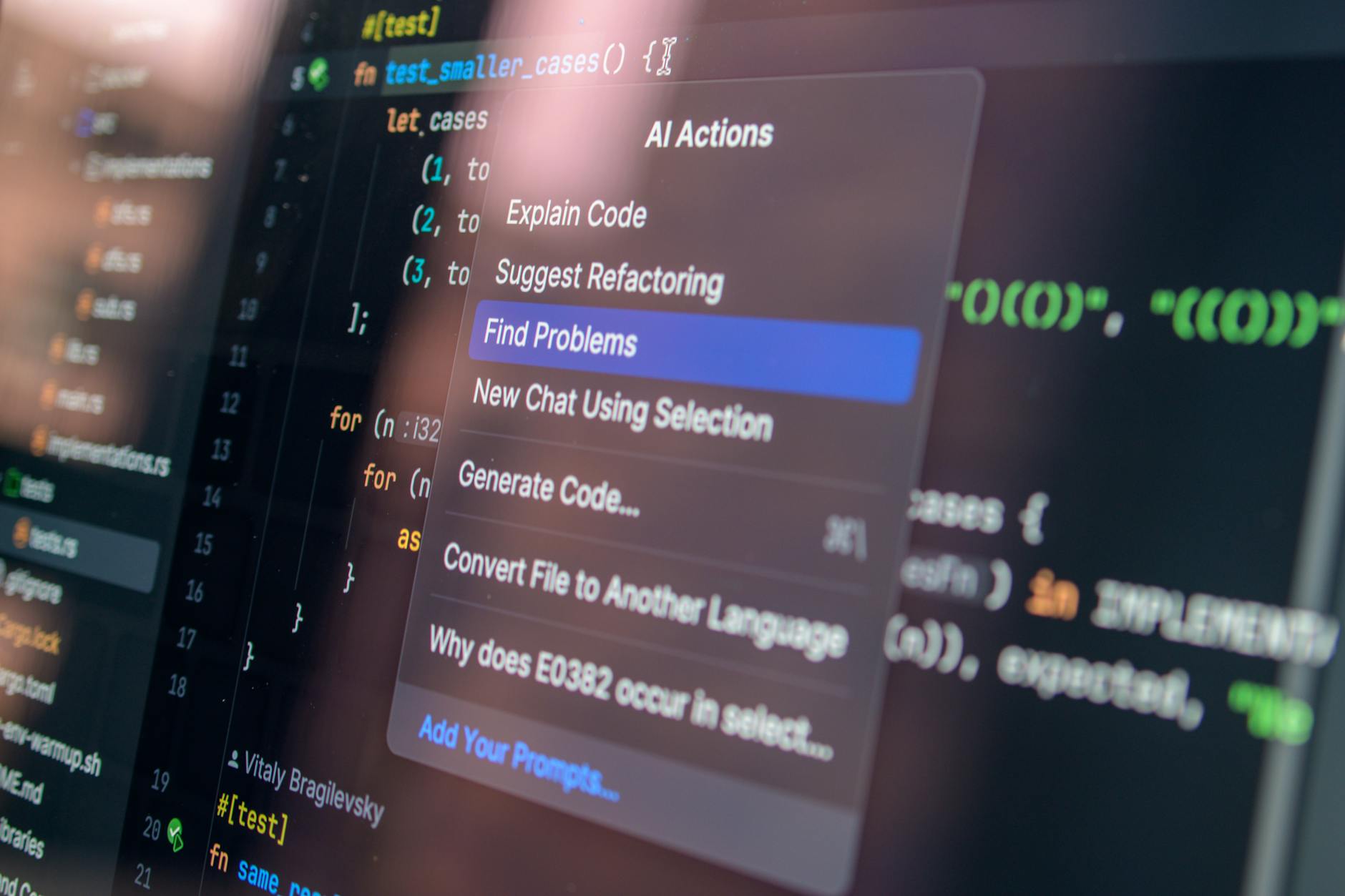
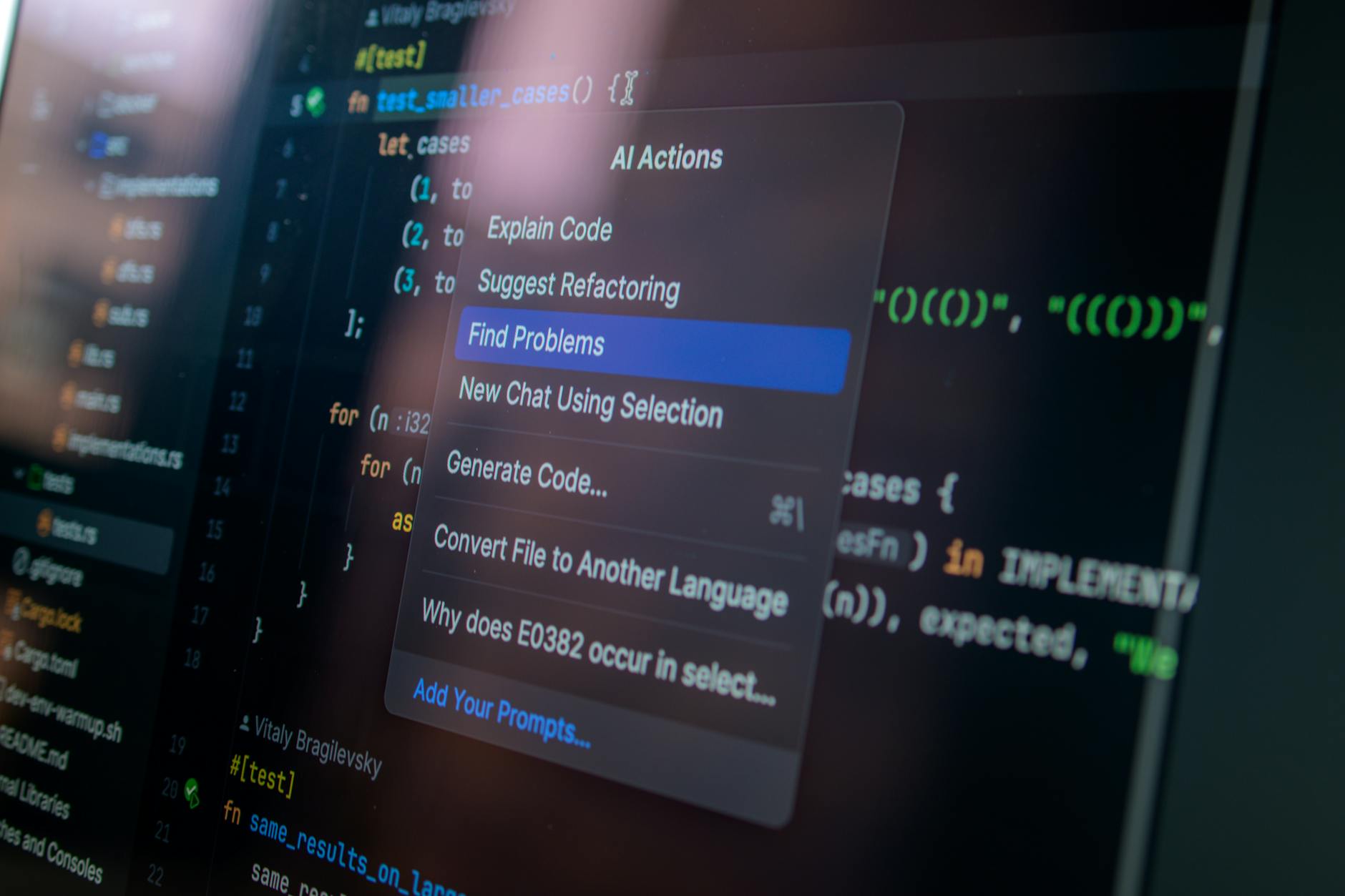
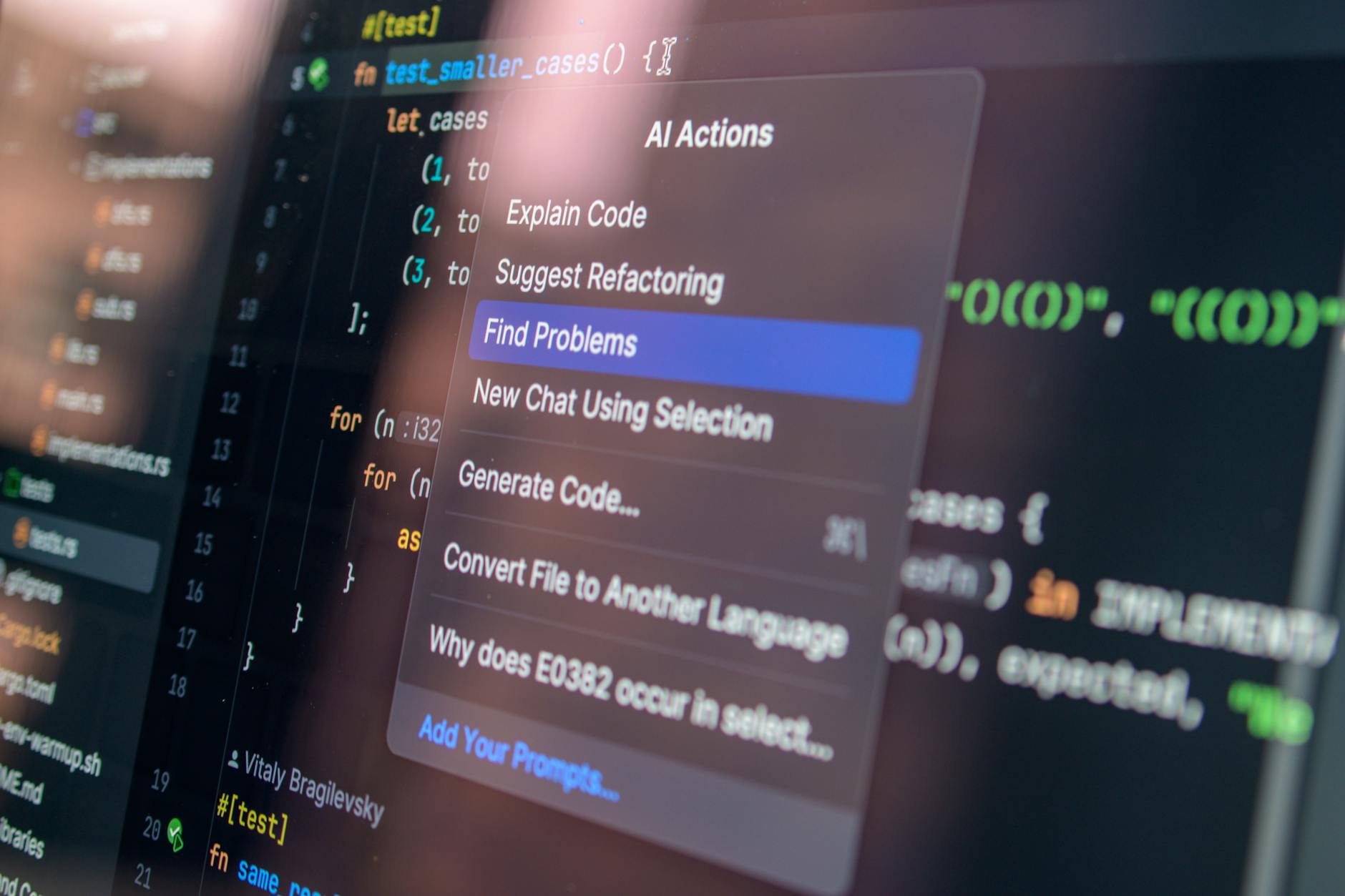
For inherited codebases or complex functions, highlight any code block, right-click → Copilot → "Explain." The AI gives a plain-English explanation of what the code does, what inputs/outputs to expect, and potential gotchas. Use this same flow to generate JSDoc comments, README sections, or inline documentation. Pair with Continue's /doc command for batch documentation of entire files.
When VS Code shows an error or your terminal has a stack trace, paste it into the Copilot Chat panel with "How do I fix this?" The AI interprets the error, explains the root cause, and suggests a fix with code. For Continue users, use /fix with the problematic code selected — the AI edits the code directly in your editor, not in a chat response. See also: Cursor vs GitHub Copilot 2026 for a comparison of how Cursor handles debugging vs. VS Code.
Workflow: Error in terminal → copy stack trace → Copilot Chat → paste error + "Fix this" → review suggested fix → apply.
Use Copilot Chat or Continue to refactor code for specific objectives. "Refactor this function to use async/await instead of Promises." "Convert this class component to a React functional component with hooks." "Split this 200-line function into smaller, testable functions." The AI understands your intent and proposes a refactored version that you can accept or modify.
Before opening a PR, use Copilot's /review command or continue's chat to do a self-review. Select your changed files → Copilot Chat → "Review this code for bugs, security issues, and performance problems." This catches issues before human code review and makes you a more thoughtful developer. GitHub Copilot also generates PR descriptions automatically from your diff when you open a pull request.
A: For most developers, yes — especially if you're already on GitHub. Copilot has the deepest VS Code integration, the best inline completion quality, and GitHub ecosystem features (PR descriptions, GitHub Actions help). For those who want free alternatives or model flexibility, Codeium (free, unlimited) or Continue (open-source) are excellent. See our full Cursor vs GitHub Copilot 2026 comparison.
A: Yes, via the Continue extension. Continue supports OpenAI, Anthropic, Google, and local models via a single configuration. Add your API key in Continue's config.json and select "Claude 3.5 Sonnet" or any other model as your default. You get the same chat and inline edit capabilities as Copilot but with your choice of model.
A: Yes. Codeium offers unlimited free completions and chat in VS Code with no credit card required. Continue is fully free and open-source. Amazon CodeWhisperer has a free individual tier. AWS CodeWhisperer also includes free security scanning. See free AI tools for developers 2026 for a complete list.
A: If you're satisfied with your VS Code setup and plugins, adding GitHub Copilot or Continue gives you 80% of what Cursor offers without switching tools. Cursor's advantages are its agentic code editing (it can edit multiple files simultaneously following a single instruction) and deeper codebase understanding. See Cursor vs GitHub Copilot 2026 for a decision framework.
A: GitHub Copilot supports all languages VS Code supports — which is essentially every mainstream language. Quality is highest for Python, JavaScript/TypeScript, Go, Rust, Java, and C#. For less common languages or domain-specific languages, suggestion quality is lower but still useful for boilerplate.
A: GitHub Copilot Business and Enterprise have data privacy settings that prevent your code from being used to train models. Individual Copilot users can opt out of telemetry in VS Code settings. For maximum privacy, use Continue with a local model via Ollama — your code never leaves your machine.
AI in VS Code in 2026 is not a single tool — it's a layered system of extensions that handle completion, chat, documentation, testing, and review. Start with GitHub Copilot (or Codeium if you want free) for inline completion, add Continue for chat with multiple model support, and install GitLens AI for commit messages. These three extensions transform VS Code into an AI-native editor that can compete with purpose-built tools like Cursor while preserving all your existing workflows.
Try AI-powered workflows with Assisters — free to start.
The rise of "vibe coding" has transformed how founders and developers build software—turning abstract ideas into working prototypes in minut…
Developers building AI assistants today face a critical choice: which AI Assistant SDK will help them embed, train, and ship faster? The rig…

When building applications that require intelligent assistance—whether for customer support, internal workflows, or user-facing features—cho…







Comments
Sign in to join the conversation
No comments yet. Be the first to share your thoughts!